Accessing the Main Menu
All the functionality of the program is accessible either from the program's Main Menu, or from the control "Ribbon" that appears along the top of the screen. The same functionality is available in both places, it is purely a matter of personal preference for the user which one they prefer. The Ribbon is new in version 11 of the program.

If you prefer not to see the Ribbon because you are used to the previous functionality of the program you can hide it by using the dropdown list on the right hand side:
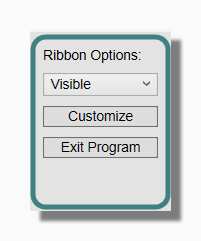
The dropdown includes options Visible, Hide or Auto Hide. With the Auto Hide the Ribbon only appears when the mouse pointer is moved very close to the top of the
screen. The same options are found on the Options Form, so if you hide the Ribbon you can always bring it back by using
this form.
The program offers the following ways to access the legacy Main Menu...
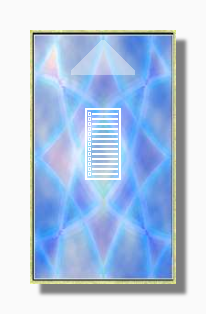
Click on the patterned area on the back of the deck or...
Right-click anywhere on the back of the deck or...
By using the Control-M key combination* or...
Press the Windows shortcut-menu button on a Windows keyboard*
* These two keys will either open the Main Menu or show the Ribbon, according to your preference marked on the Program Tab of the Options Form.
Tip: The first two options are new ways of opening the main menu that were introduced in version 10.0.
Previous versions of the program required right-clicking the deck. Some users
prefer the simpler look and feel of the program without these newer introductions. You can hide them or make them less visible by deselecting "Show easy access menus"
on the Program Tab of the Options Form.
Tip: The last two keyboard shortcuts can be configured to either show the Ribbon or to show the legacy menu, according
to the "Show Ribbon" or "Show Classic Menu" option buttons on the Program Tab of the Options Form.